

economy
Did you forget your password and mail registered in the SAT Virtual Agency? Know how to recover your user step by step and resume access to your tax services.

Taxpayers can recover access to the SAT virtual agency through an online process, even if they forgot their password or no longer have access to the registered mail. (Photo, free press: Shuttersock)
Forget the password of the SAT Virtual Agency or lose access to registered email It is a common situation among taxpayers in Guatemala.
Given this inconvenience, the Superintendence of Tax Administration (SAT) offers an online process for Recover the user or change email associated with the account.
Next, the updated procedure is detailed for Recover access to the SAT Virtual Agencyespecially in cases where the taxpayer does not remember his password or has access to his registered email.
What to do if you still have access to the virtual agency?
If the taxpayer retains access to your account, you should only:
- Locate the menu that appears under the details of the Tax credentials. Upper right if you are seeing the website on a computer.
- Select the option “Password change” either “Email”
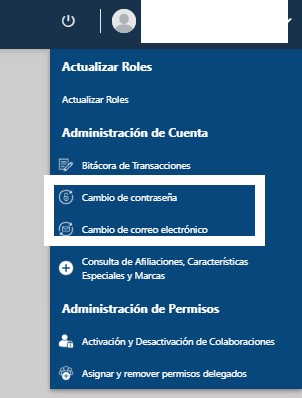
This method is fast and does not require additional validations. However, if the user has forgotten his password And you can’t access the registered emailyou must follow the following steps.
Step by step to recover the user of the SAT Virtual Agency
If you do not remember your password or have access to the registered email, you can follow this step by step to recover the user of the SAT Virtual Agency.
- Enter the Official Portal of the SAT: www.sat.gob.gt.
- Select the option “Did you forget your virtual agency email?”.
- Enter the Nit without script.
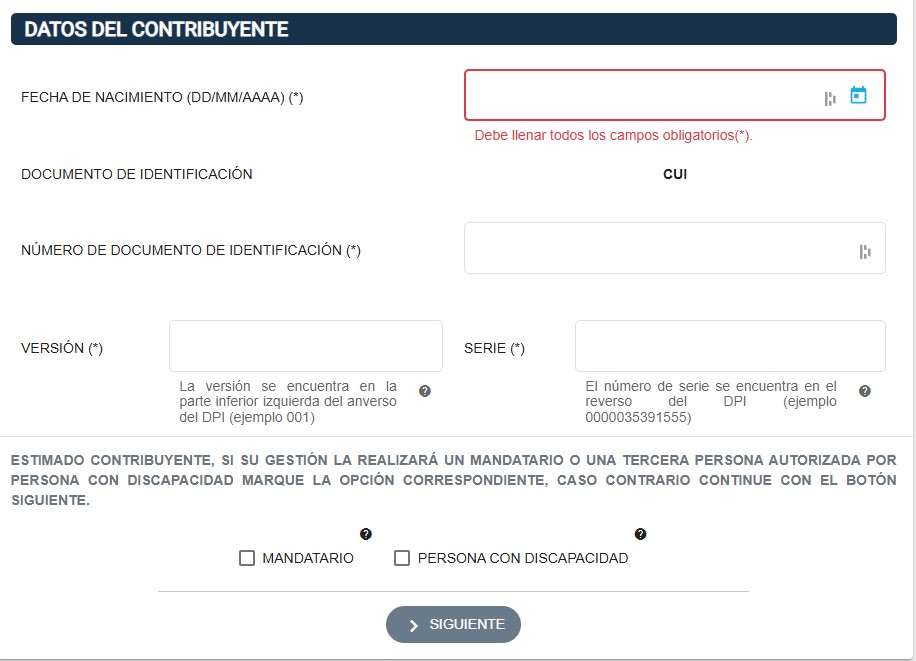
- Fill the application with the required data.
- Write the birthdate in DD/mm/aaa format.
- The system will show the type of Identification document registered in the RTU.
- Enter the Identification document number.
- Enter the DPI version numberif the system requests it.
- Enter the DPI serial numberif requested.
- Mark the corresponding boxes if acting as leader or if it is a Disabilities.
- Enter a New email To register it.
- Fill the form corresponding to the new mail.
- The system will show a Management number and one Key to cancel managementif necessary.
- An email will be sent to the new registered address with more instructions.
Documents required to complete the application
After filling the form, the system will request that the following files be attached:
- Identification document (Both sides in a single file in PDF, JPG, JPEG or JPE format). If the DPI is in process, the RENAP Proof.
- MP4 format video (maximum 10 MB) where the user shows their identification document or processes, say your Full namethe management date and mention the “SAT” either “Superintendence of Tax Administration”
When pressing the button CARRYa window will open to select and upload the files. The button VISUALIZE It allows you to get a preview of the file before sending it.
Confirmation and notification of the process
If all the information and documents meet the requirements, the taxpayer will receive a Confirmation email indicating that the management was completed successfully.
Subsequently, you can enter your SAT Virtual Agency with his Updated user and password.
Recommendations and schedules of attention
- The attachments should not exceed 10 MB to avoid errors in the system.
- The SAT recommends carrying this process during its Hours of attentionwhich is from Monday to Friday, from 08:00 to 4:00 p.m..